Intersection and Projection
These two tool create curves, one by finding the intersection of two solid objects, and the other by projecting a 2D object onto a 3D solid.
Intersection

Default UI Menu: Modify/Intersection
Ribbon UI Menu:

Creates curves along the intersection of two solids (not surfaces). This tool does not work with surface objects. Select the first and second solid objects. This example shows a sphere and a hemisphere.
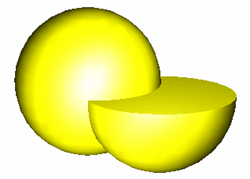
The intersection curves are created.
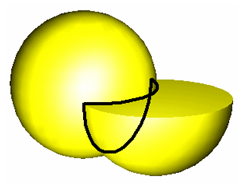
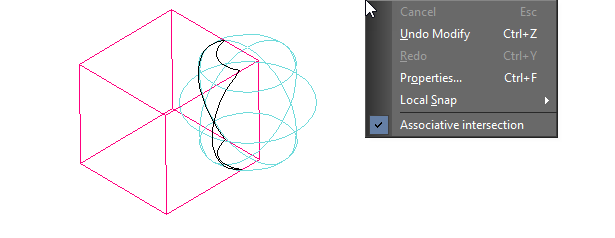
Associative Intersection:
If this local menu option is enabled, the intersection curves created get associated with the 3D objects. That is, with the movement of the intersecting objects, the intersecting curves get updated accordingly.

Projection

Default UI Menu: Modify/Projection
Ribbon UI Menu:

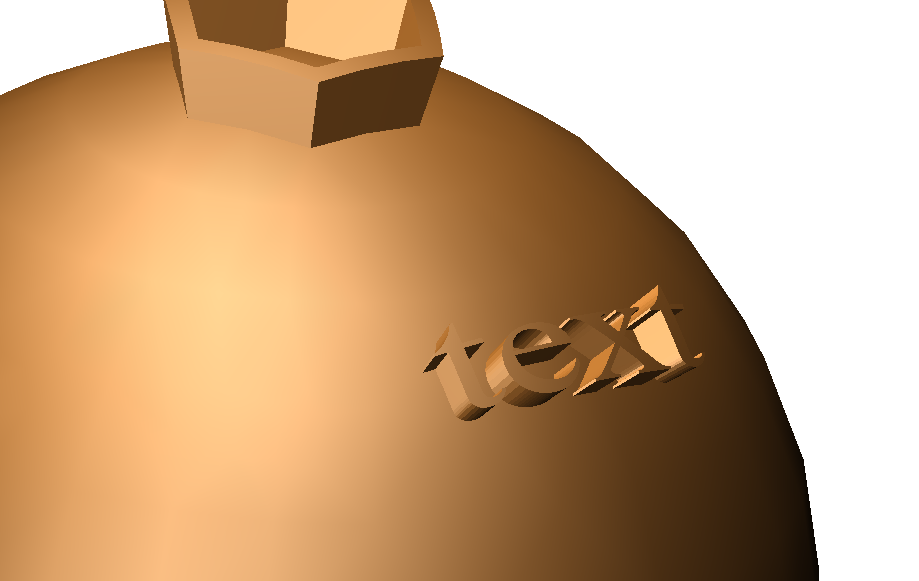
Projects a 2D curve onto a solid (not surface) face. The 2D curve can be open or closed. This example shows a 2D polyline and a Simple Extrude generated from a line-segmented polyline. First select the 2D curve. Then select the face. Even though the Simple Extrude is one object, its faces are still considered separate for this tool.
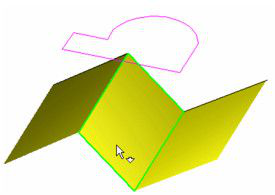
Note: Even when you are projecting onto a surface such as this one, the object type must be a solid, as set in the 3D page of the object’s Properties.
The projection curves are created. For a planar face, the curves can be placed on the face’s theoretical extension.
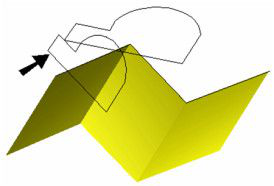
In this view, the projection can be seen more clearly.
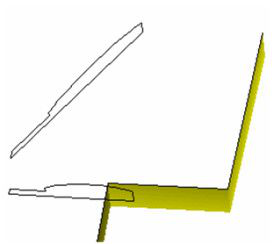
If you are projecting onto a curved face, the projection will be scaled toward the center of the curved face.
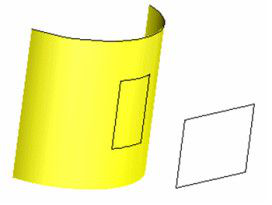
Local Menu Options:

-
Imprint
Projects edges and vertices directly onto the selected body surface, creating imprinted faces and regions on the solid geometry.
When disabled, projected geometry is created as wireframe entities instead of modifying the target body.
Projection and imprint operations are applied across the entire selected body instead of being limited to a single selected facet. This allows projected geometry to continue smoothly across connected surfaces and curved regions.
For improved positioning and alignment during projection operations, the following tools can be used:
-
Nearest on Facet object snap
-
Set by Normal to Facet
-
Entity CS
Imprinted Face Operations
Imprinted faces can be used with additional modeling workflows including:
- Facet Offset
- Extract Entity
- Facet Edit
-
-
Join
Combines resulting projected geometry into a single 3D polyline where possible.
This option is available only when Imprint is disabled.