How to install, activate, try, move and troubleshoot your IMSI Design software license. Applies to every product that uses IMSI Design license activation, on Windows and on Mac. Document version 1.2, November 2026.
1. Before you start
Have these ready:
- Your license key. It is in your order confirmation email and in the delivery email that carries your download link. It looks like
XXXXX-XXXXX-XXXXX-XXXXX-XXXXX. You can also find it in your account on the store where you bought the software. - The email address you used for your order. This is how we find your license if you ever need help.
- An internet connection on the computer you are activating. If that computer has none, see Activate offline.
- WindowsWindows 10 or Windows 11. The activation window uses the Microsoft Edge WebView2 Runtime, which is already part of current Windows 10 and 11 installs. If it is missing, activation shows a plainer window with the same steps and buttons.
- MacmacOS 13.3 or later for the activation window. Your product may need a newer macOS, so check the system requirements on its product page. Macs with Apple silicon and Intel Macs both work. The activation window uses the web view that is built into macOS, so there is nothing extra to install.
2. Install the software
WindowsOn Windows
- Download the installer from the link in your delivery email, or from your account. Save it to your computer.
- Close other programs, then run the installer. If Windows asks whether to allow it to make changes, choose Yes. The publisher should read IMSI Design LLC.
- Follow the installer’s prompts. Accept the license agreement, choose an install folder (the default is fine) and wait for it to finish.
- Start the program from the Start menu or the desktop shortcut. The first time it starts, the activation window opens. Continue with step 3.
MacOn a Mac
- Download the disk image (a file ending in
.dmg) from the link in your delivery email, or from your account. Save it to your Mac. - Double-click the file to open it. Follow the instructions in the window that appears. For most products this means dragging the program into your Applications folder. Then eject the disk image.
- Open the program from Applications, Launchpad or the Dock. Our Mac programs are digitally signed and checked by Apple, so macOS may only tell you that the program was downloaded from the internet and ask whether to open it. Choose Open.
- The first time it starts, the activation window opens. Continue with step 3.
3. Activate with your license key
Activation links your license key to this computer. It takes about a minute.
Step 1: Enter your license key
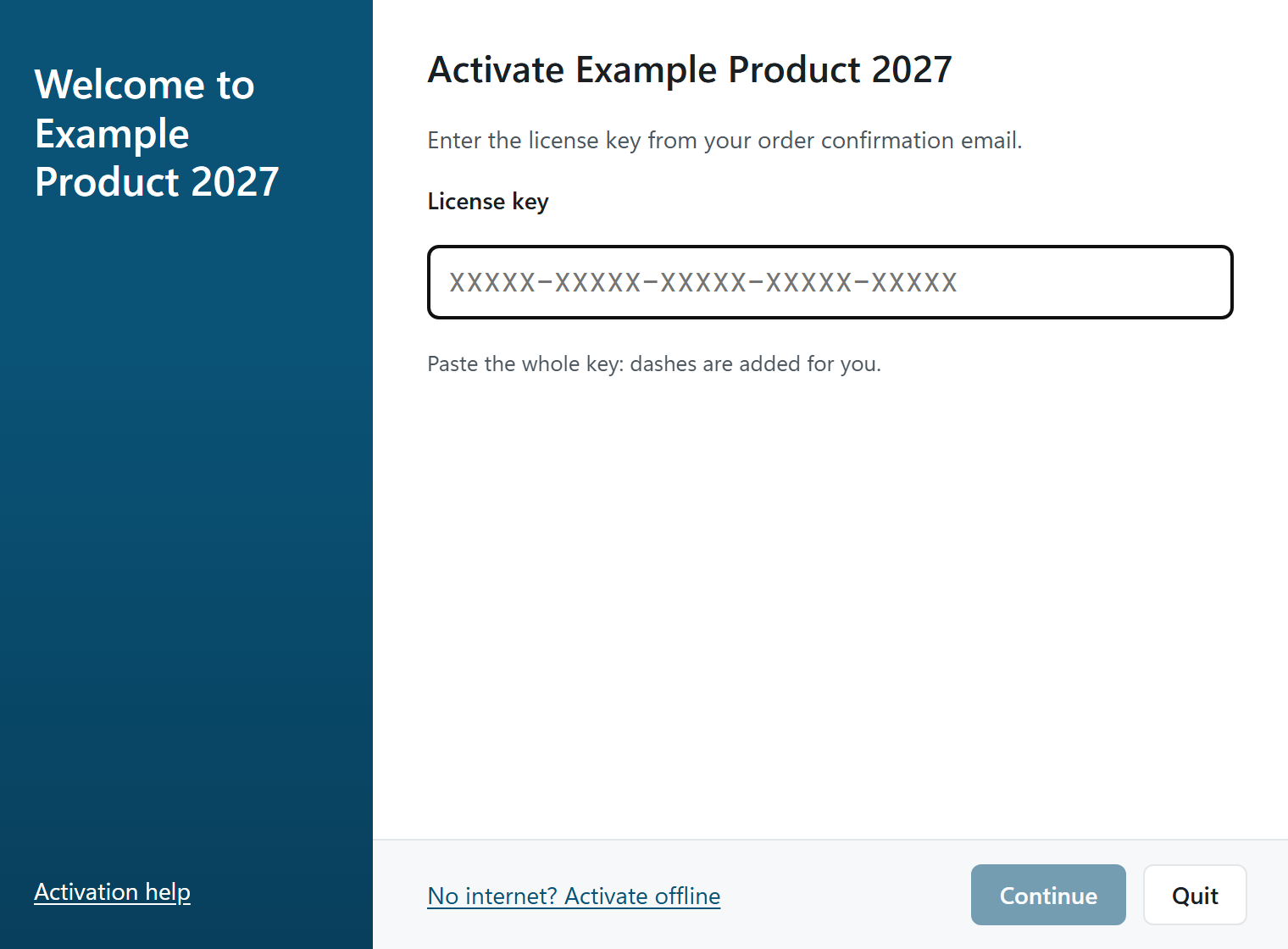
Click in the License key box and type or paste the whole key. The dashes are added for you. When the key is complete, Continue becomes available. Click it.
Step 2: Tell us who the license is for
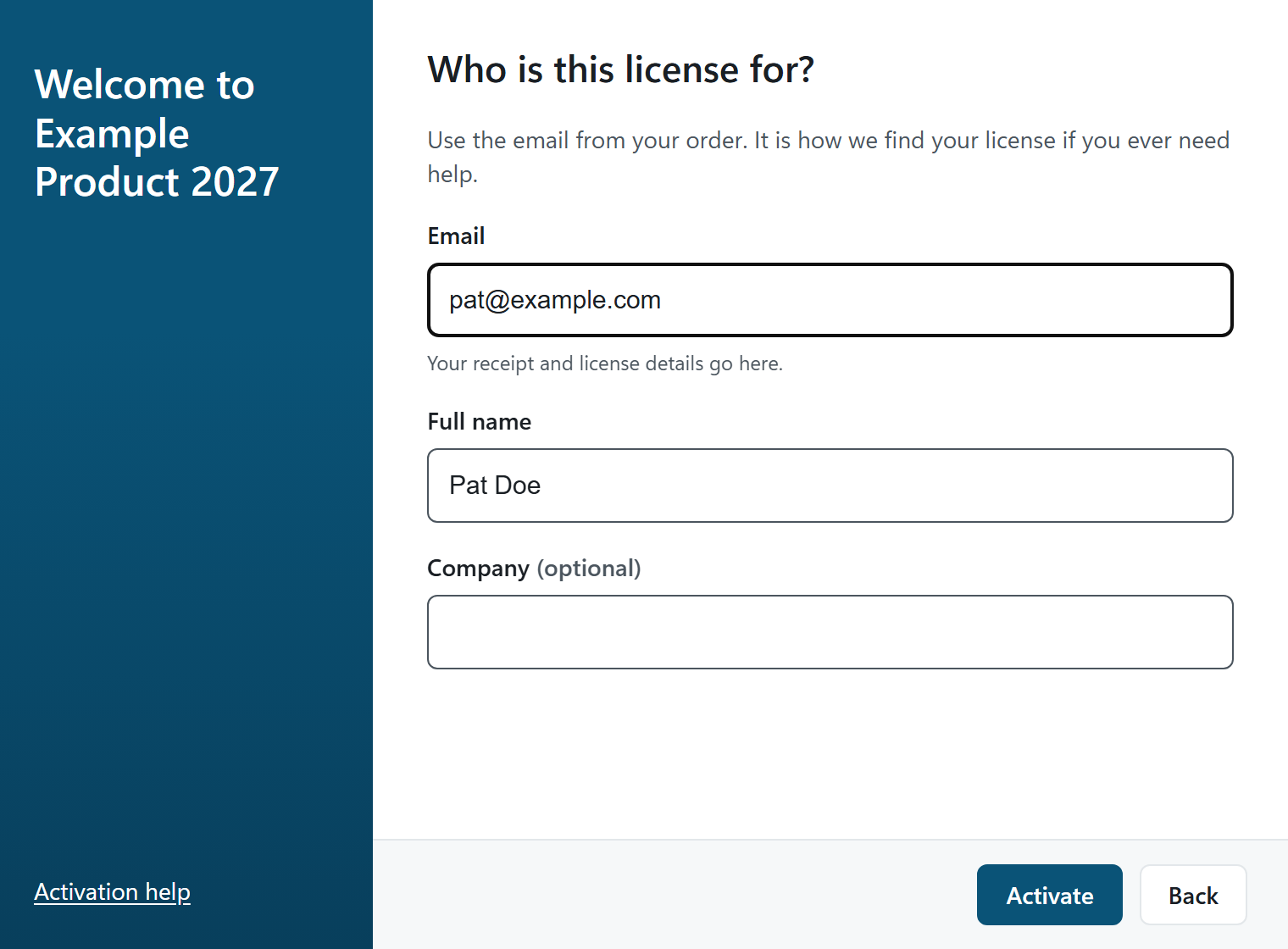
Enter your email and full name. Company is optional. The name must contain at least one letter or number. Click Activate. The program contacts the IMSI Design license server and confirms your key.
If the email does not match the order, the window says so. Check the address and try again, or use the email that appears on your order confirmation.
Step 3: Start your software
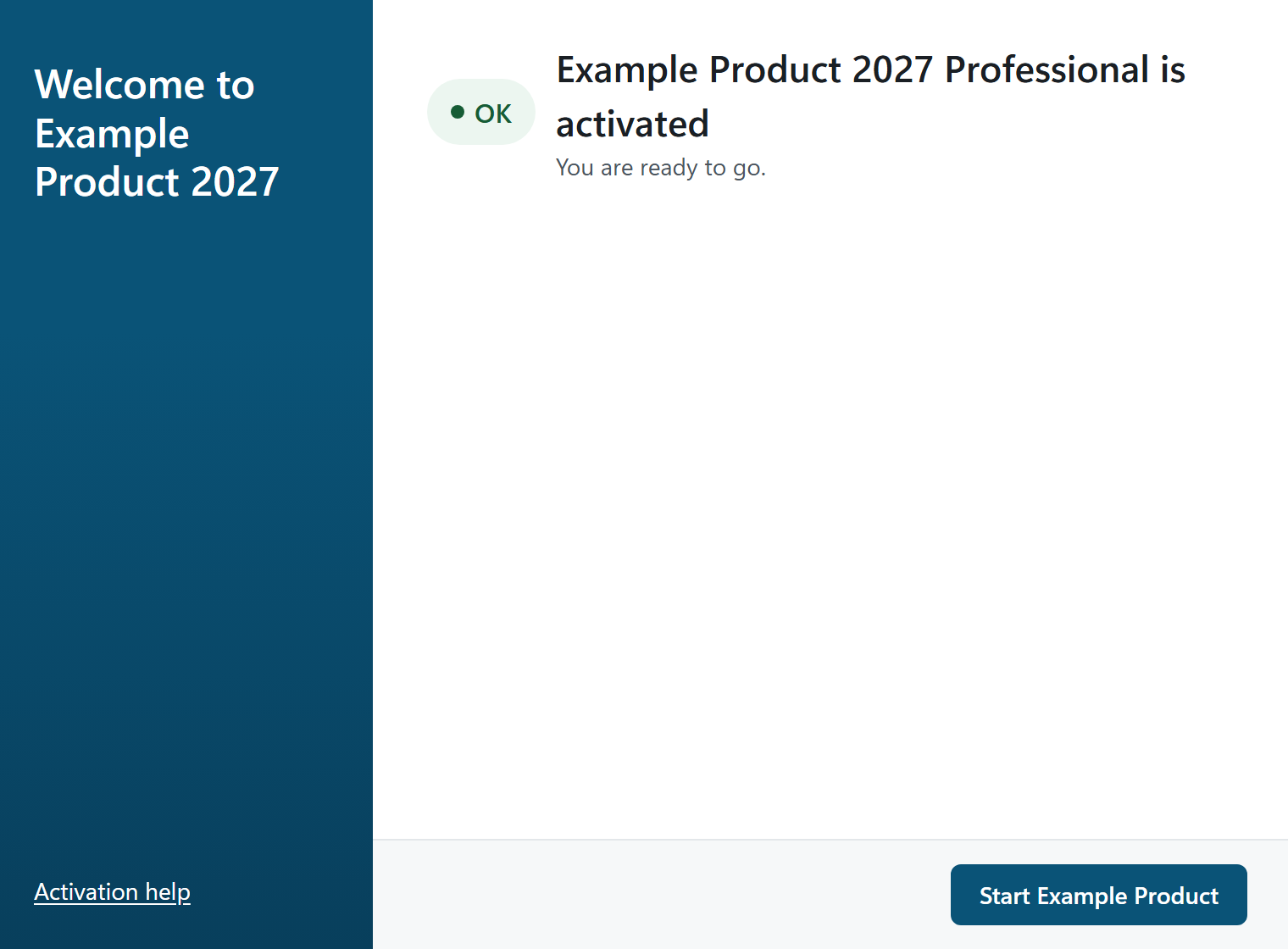
The window confirms your product and edition. Click the button at the bottom right, which shows your product’s name (here Start Example Product), to open the program. You will not see the activation window again on this computer unless you move or reset the license.
4. Free trial (if your product offers one)
Some products can be tried without a key. If yours can, the activation window shows a No key yet? box with a Start free trial button. The trial length is stated in that box.
- Click Start free trial.
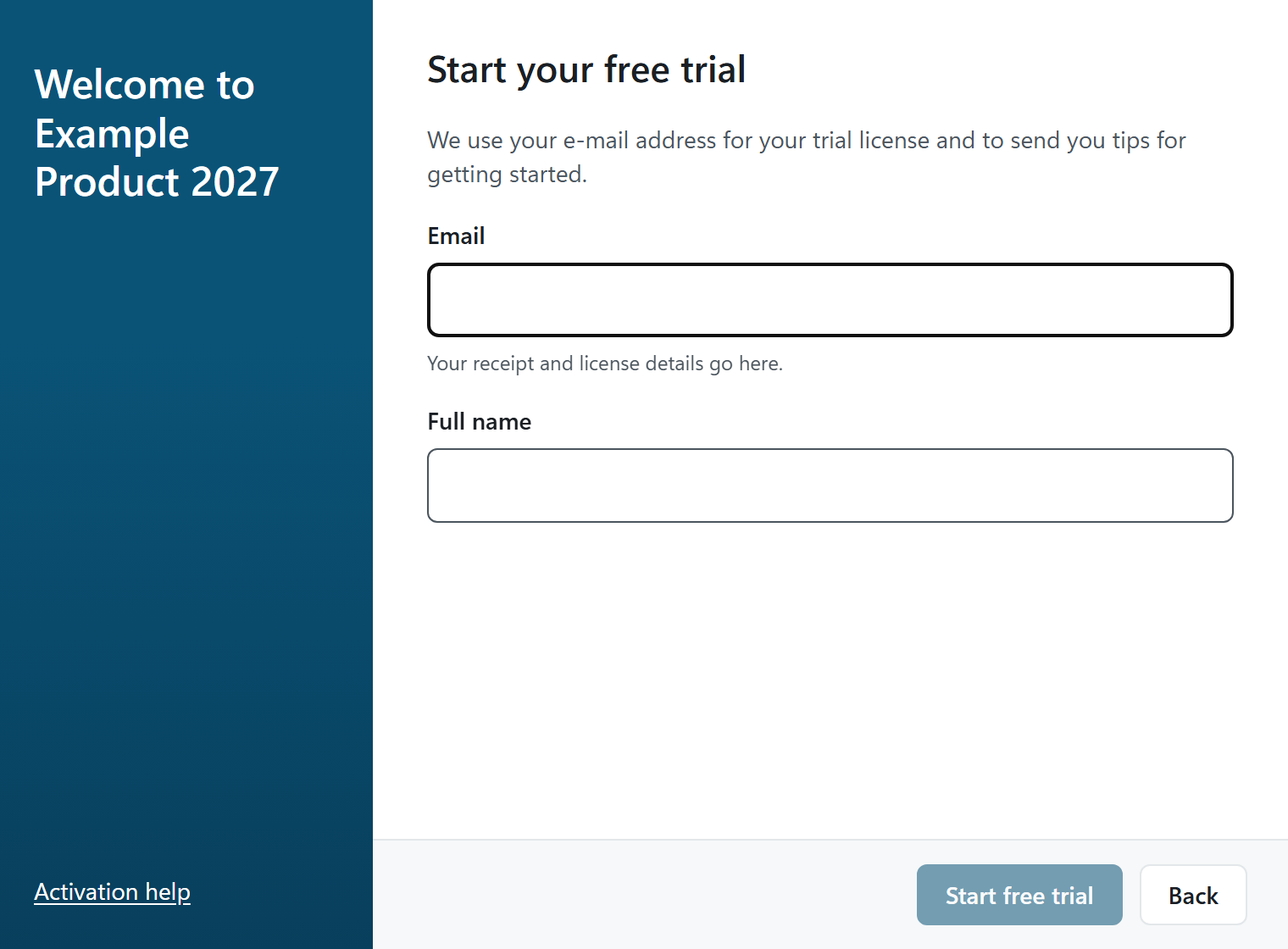
- Enter your email address and full name. We use them for your trial license and to send tips for getting started. No payment details are needed.
- Click Start free trial again, then the Start button, which shows your product’s name, when the window confirms that your trial is activated.
While the trial runs, a reminder shows how many days are left each time you start the program.
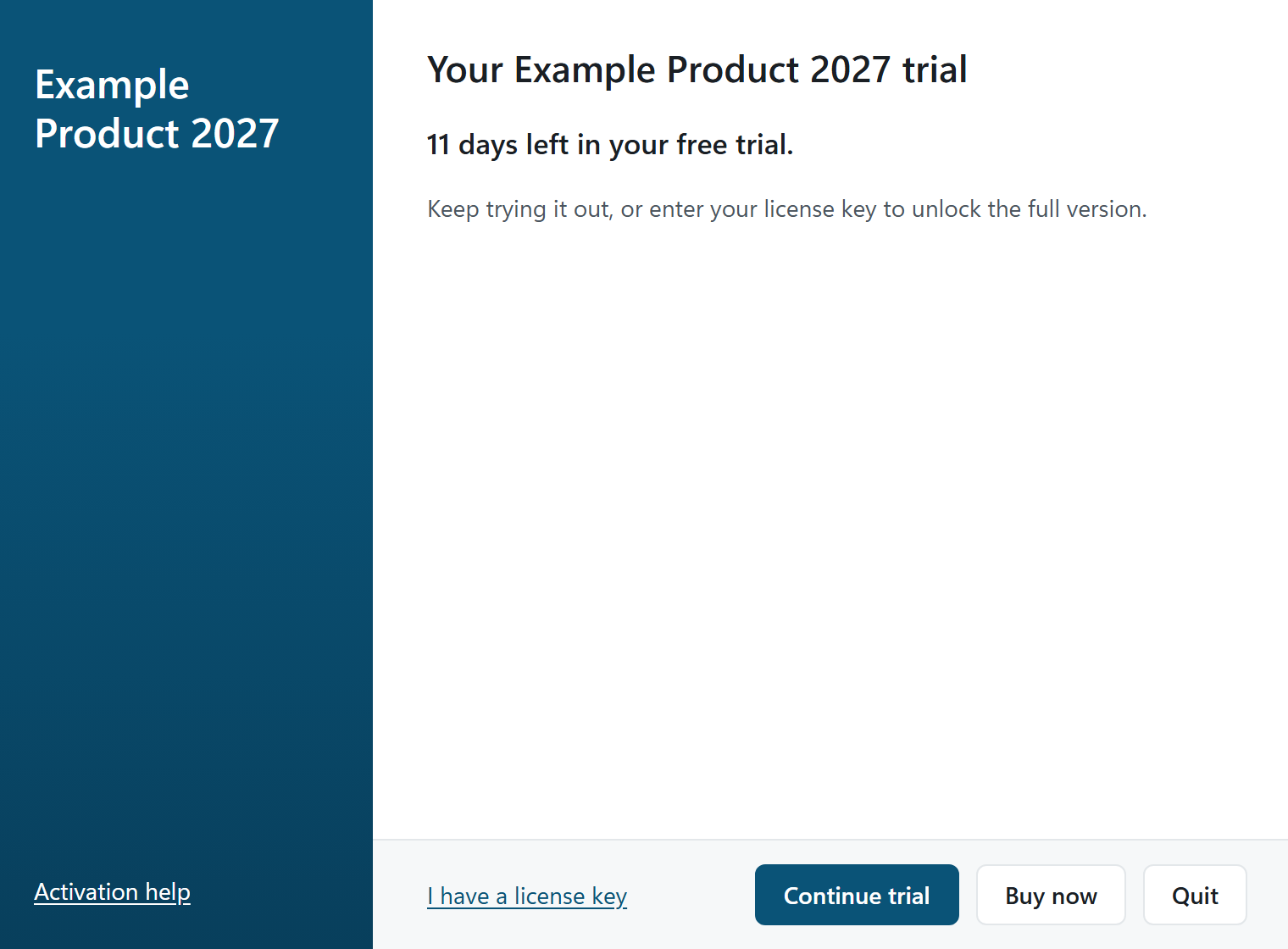
When you buy, click I have a license key on the reminder and enter the key from your order, exactly as in step 3. Your work is kept. A computer can use one free trial of a product.
5. No internet? Activate offline
If the computer cannot reach the license server, the activation window offers No internet? Activate offline. You will need a second device with internet access (a phone is fine) to contact Support.
- Enter your license key and details as usual. If the program cannot connect, choose Activate offline.
- The window shows three codes: your license key, an installation code and a machine code.
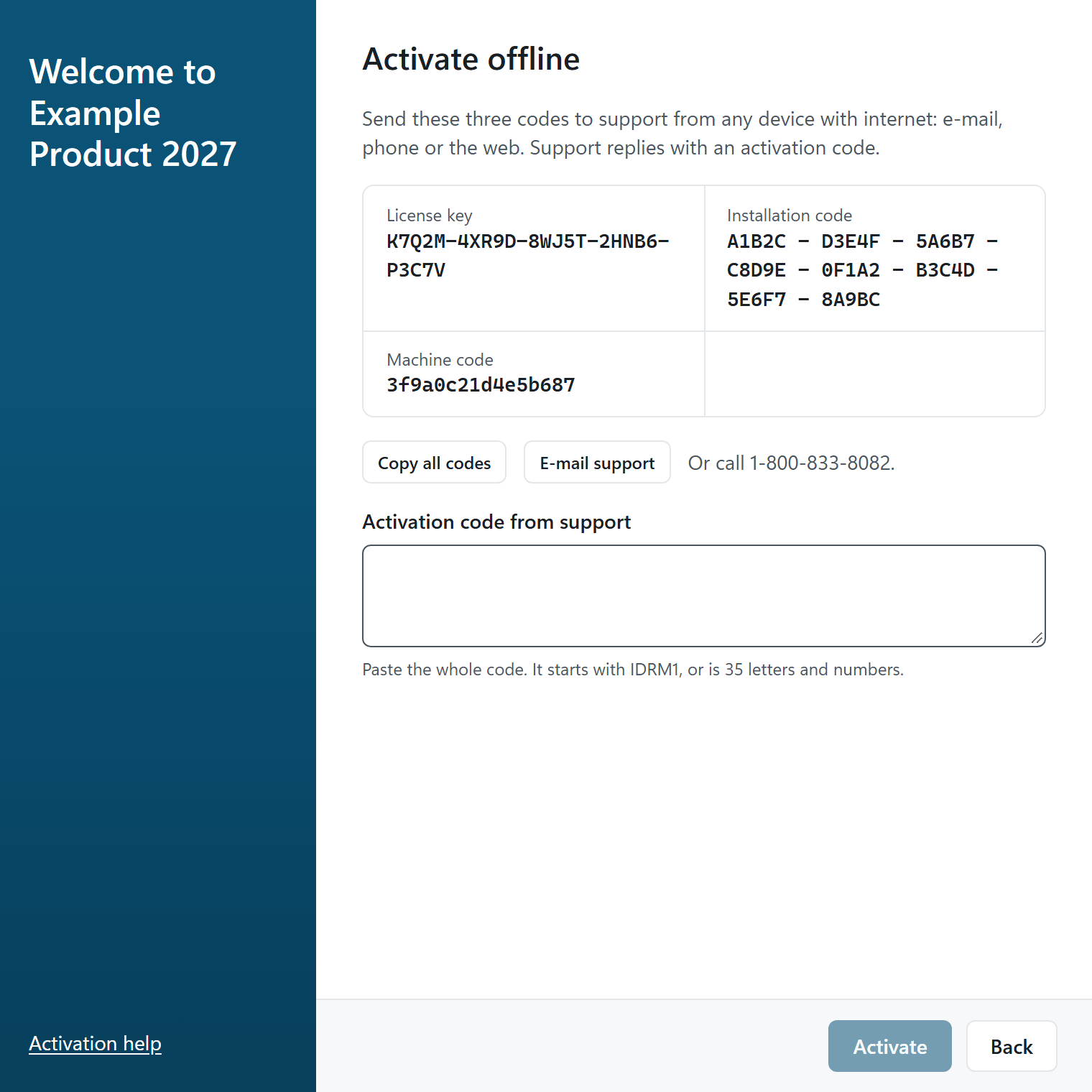
Click Copy all codes or E-mail support to send them without retyping. - Send all three codes to IMSI Design Support from your other device, by email or by phone, using the contact details in the window or in Getting help.
- Support replies with an activation code. It starts with
IDRM1or is 35 letters and numbers. - Paste the whole code into Activation code from support and click Activate.
6. Activating an upgrade
If you bought an upgrade, the key in your order email works the same way: enter it in the activation window in step 3.
- Version upgrades (for example from last year’s version to the new one) may ask for proof that you own the earlier version. The program first looks for a qualifying earlier version on this computer. If it cannot find one, it asks you to type your earlier license key. You can also contact Support.
- Your earlier version keeps working on computers where it is already activated. Your earlier key cannot be activated on new computers once it has been upgraded. Use your new key for new installations.
- Edition upgrades (for example to a higher edition of the same version) are applied to your existing license. The program may ask you to restart.
You can also upgrade from inside the program. Open the license window (section 7), choose an offer under Upgrades for you, and complete the payment in your web browser. The window waits, then applies your upgrade automatically.
7. View and manage your license
In the program, open the Help menu and choose License. (In some products it is under Help > License & Account.) The menu is the same on Windows and on Mac.
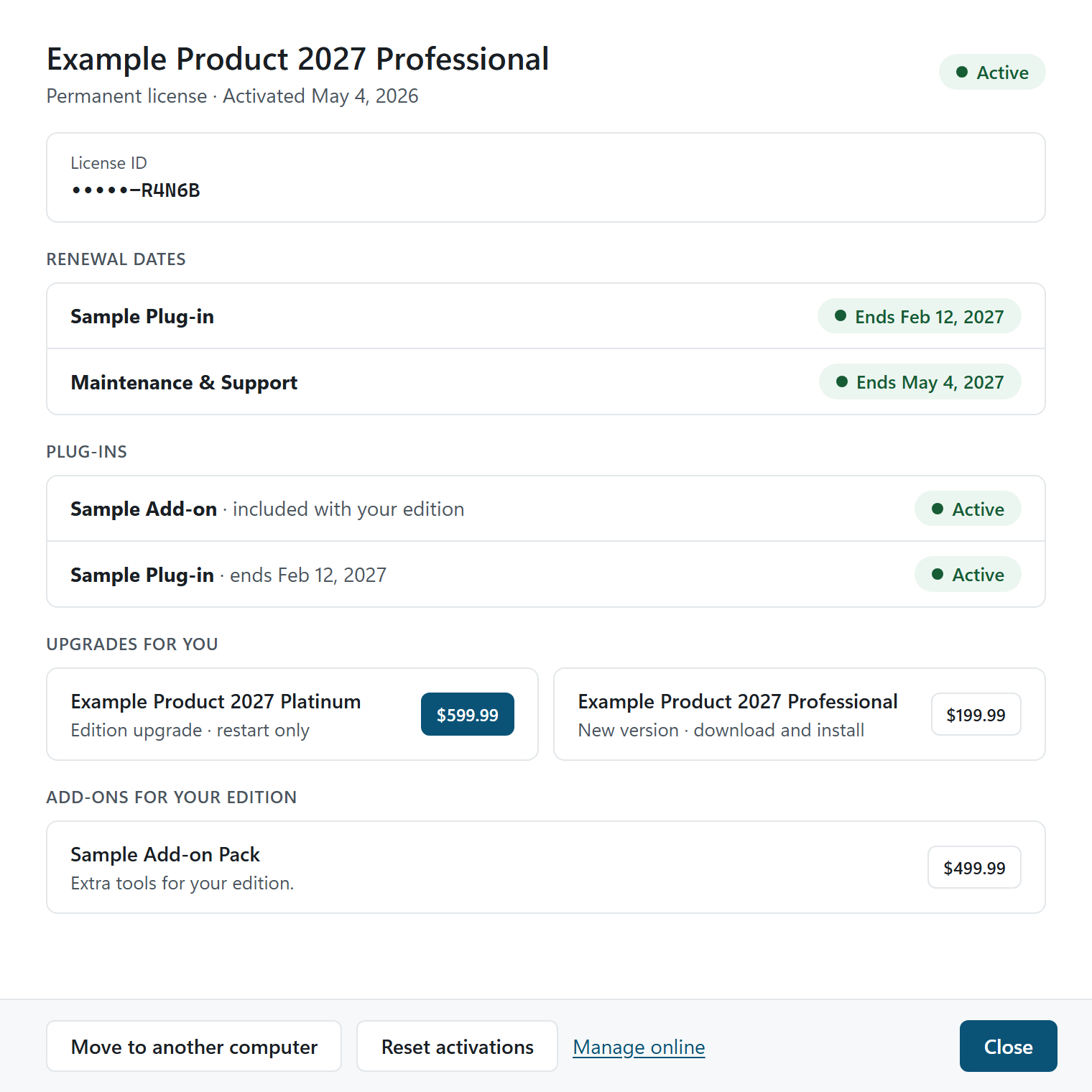
| You see | What it tells you |
|---|---|
| Product, edition and status | What you own, whether it is Active, and when it was activated. The license type is shown (permanent, term or trial). |
| License ID | The last five characters of your key. Quote them to Support. The rest is hidden on purpose. |
| Renewal dates | When Maintenance & Support, subscriptions or plug-in licenses end or renew. |
| Plug-ins and add-ons | What is included with your edition, and extras you can add. |
| Upgrades for you | Upgrades you are eligible for, with live prices. |
| Manage online | Opens your account page in your web browser. |
8. Move to another computer
Use this when you are replacing a computer or have reached your computer limit. Do it on the computer you are leaving.
- Open Help > License.
- Click Move to another computer and confirm. The program releases the license from this computer and closes.
- Install the software on the new computer and activate it with the same key.
Reset activations (when shown) removes this key from all the computers it was activated on, for example if a computer was lost or no longer starts. You can use it once every 365 days, and the window tells you the date it becomes available again. It needs active Maintenance & Support or an active term. If it is not available to you, contact Support, who can help. You can also manage computers online through Manage online.
9. If something goes wrong
| What you see | What to do |
|---|---|
| “This key is already in use on its maximum number of computers” |
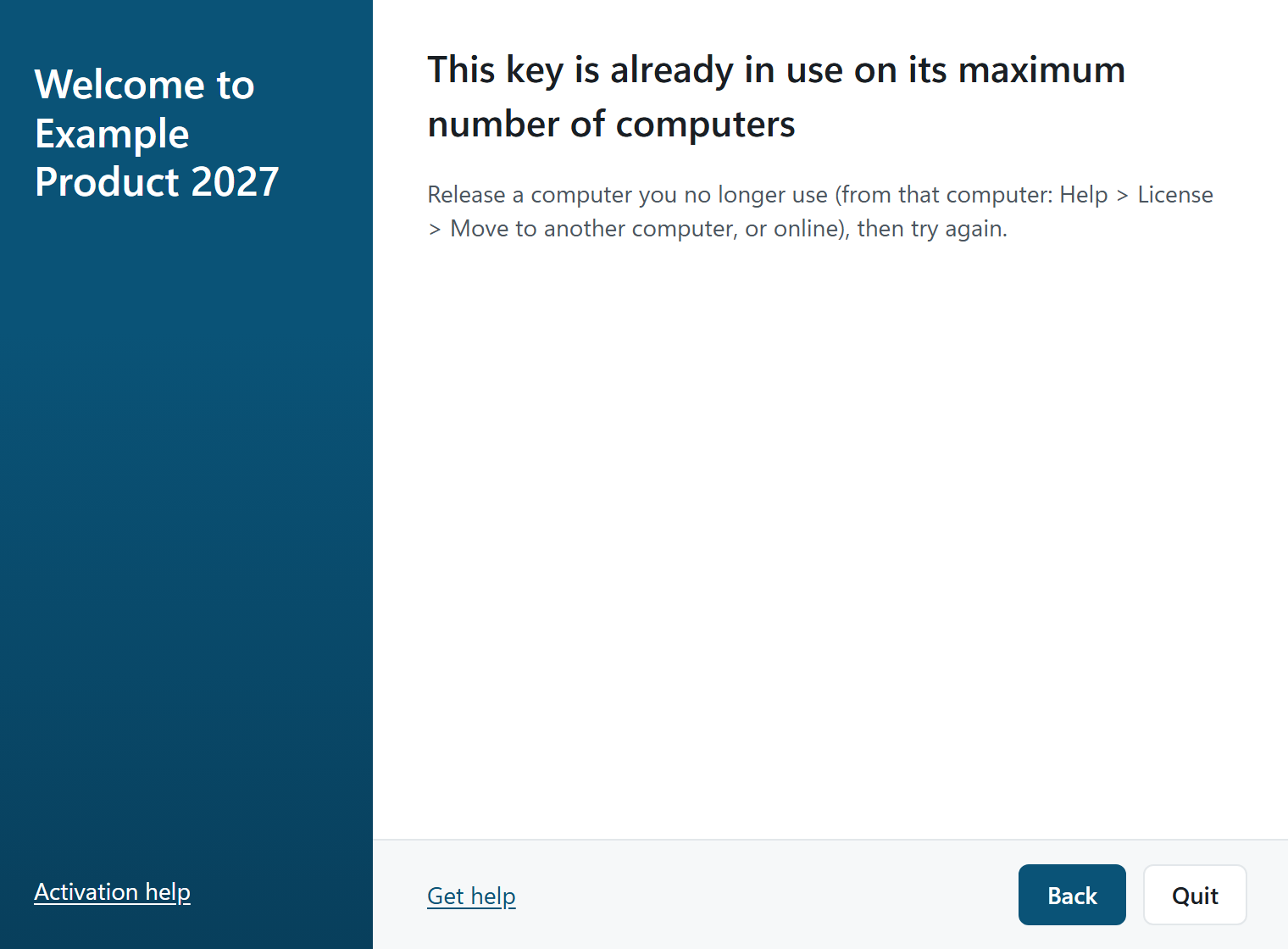
|
| “Could not reach the activation server” | Check your internet connection and try again. If your network uses a firewall or proxy, ask your administrator to allow secure (HTTPS, port 443) access to drm.imsidesign.com and www.imsidesign.com. If this computer has no internet, use offline activation. |
| “The license key entered does not match this product” | The key belongs to a different product or edition. Check that you are using the key from the order for the product you installed, or contact Support. |
| The email address is rejected or does not match | Enter the email address exactly as it appears on your order confirmation. If you are unsure which one you used, contact Support. |
| “Your free trial has ended”, or the trial was already used on this computer | Choose Buy a license or Try another key in the window. |
| “Not active” on Help > License, or you are asked to activate again after a Windows or macOS update or a hardware change | Update to the latest version of your software, then restart it. If it still asks, contact Support with your License ID. Do not keep re-entering the key, as each attempt can use a computer slot. |
| Network (floating) license keys | Network keys can use a different activation window and need your license server details. Contact Support if you were given a network key. |
| WindowsWindows says the file or publisher is unknown, or antivirus blocks activation | Download the installer again only from the link in your IMSI Design email or from your account. The publisher should read IMSI Design LLC. Do not replace or re-sign drmactivation.dll in the install folder, as the program checks that it is the genuine file. |
| MacmacOS says the program cannot be opened, is damaged, or cannot be checked for malicious software | Do not override the warning. Delete the download, then download it again only from the link in your IMSI Design email or from your account, and open the new copy. If macOS still refuses, contact Support and tell us the exact message. |
| MacThe program asks you to activate again after you restored your Mac from a backup, moved to a new Mac, or signed in as a different user | On a Mac your license is stored in your own user account and sealed with a key kept in your login keychain, so a different user, or a copy of your files on another Mac, does not carry it over. Sign in as the user who activated it and unlock your keychain, or move the license first (section 8) and activate on the new Mac. If the login keychain is locked or missing, macOS cannot read the license and activation asks again. Contact Support if you cannot sort it out. |
10. What activation sends
To activate, the program sends your license key, the email address and name you entered, your product and version, and an identifier of this computer to the IMSI Design license server over a secure connection. We use this to confirm your license, limit use to the computers your license allows, and help you if you contact us. After activation, the program checks your license from time to time in the same way. See the privacy policy on our website for how we handle your information.
11. Getting help
- In the program: click Activation help in the activation window to open this guide at the activation chapter, or Contact Support to reach the support team for your product.
- Support by product:
- TurboCAD, FloorPlan and IMSI Design: support.imsidesign.com/help
- Punch!, Punch!CAD, ViaCAD, SharkCAD and Architect 3D: support.punchsoftware.com
- Print Shop, PrintMaster, Mavis Beacon, Calendar Creator, Broderbund and Summitsoft: support.encore.com
- Online: visit our Help Center at help.imsidesign.com for guides and answers.
- Lost your key? Contact Support with the email address you used to buy. We can look up your order.
When you contact us, please include: the product and version, your License ID (the last five characters of your key), your email address, and what the window says. Please do not send screenshots that show your full license key in a public place.