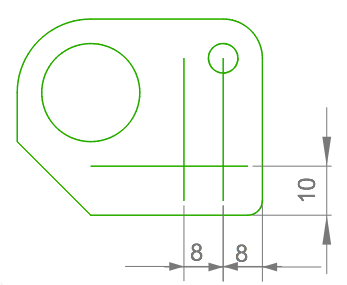
Parallel Lines
In this Task
- Parallel lines will be created by offsetting existing vertical and horizontal lines.
- Each new parallel line will be offset to a specific distance which is input into the Offset field.
Before you Start
- Use the Zoom tools to create sufficient magnification to perform this task.
Take Note
- The offset direction is indicated by left-hold selecting the line, then dragging the line to the required side.
- The offset distance is input after the parallel line has been created.
- Press the keyboard Esc key when the offset has been created to discontinue the command.
Parallel Line

Draw > Line > Parallel Line
Creates a parallel line at a specified offset distance from an existing line.
The distance is input into the Offset field.
The newly created line is inserted onto the current layer.
Select the Parallel Line tool from the toolbar, or use Draw > Line > Parallel Line.
Select the bottom horizontal edge shown below.
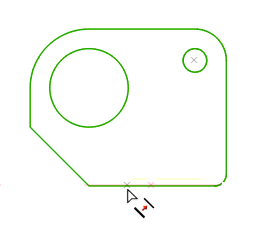
Selecting the bottom horizontal line to offset
Drag the offset in an upwards direction shown below.
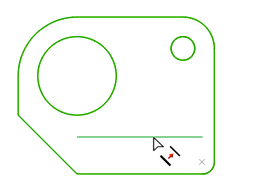
Indicating the direction of the offset
Left click to place the new line, then TAB to the Offset field an input 10.
The result is shown below.
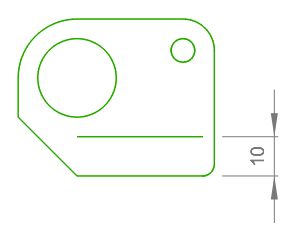
Parallel line created at a distance of 10
Select the right vertical edge, holding the left mouse button down, then drag the offset towards the left of this line shown below.
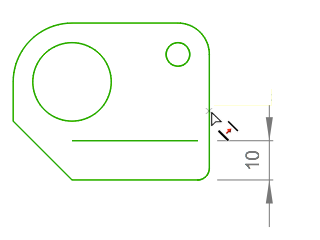
Selecting the vertical edge to offset
Left click to place the new line, shown below.
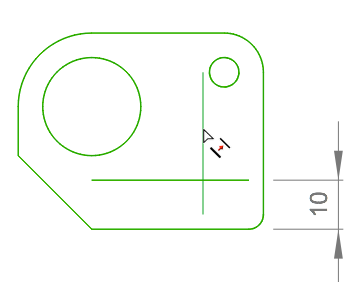
Indicating the direction of the offset
TAB to the Offset field and input 8. The result is shown below.
Select-hold the newly offset line, then drag the cursor to the left, creating another parallel line to the left, shown below.
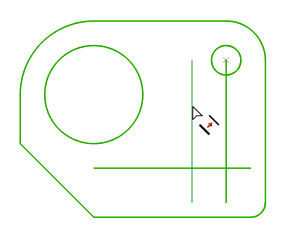
Indicating the direction of the next offset
TAB to the Offset field and input 8. The result is shown below.