Extruding a Closed Profile
In this Task
- A midplane extrusion of 22 will be performed on the sketch objects. This will extrude the sketch equidistantly from a midplane to a total height of 22.
- The objects will be moved to another layer.
- A different color will be given to the model.
Associated Tasks
- Extrude Solid, Layer Control.
Before you Start
- The sketch is viewed in Top view.
Take Note
- Profiles to be extruded can be done from any viewpoint.
- The extrusion value can be adjusted immediately after the profile is extruded.
Extrude Solid

Modify | Draw | Solid from Curves | Extrude Solid
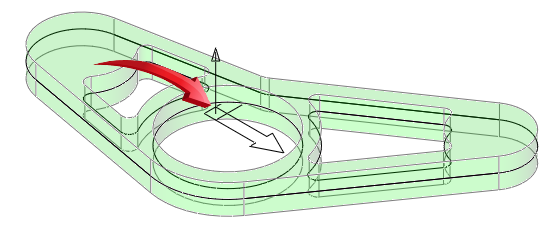
A closed profile can be extruded by providing a midplane extrusion. This will create an equidistant extrusion above and below the profile.
A midplane extrusion of 22 will be performed on the sketch objects. This will extrude the sketch equidistantly from a midplane to a total height of 22.
Select the Extrude Solid tool, then TAB to the option field and select Midplane. TAB to the distance field and input 22.
Select the sketch objects shown below.
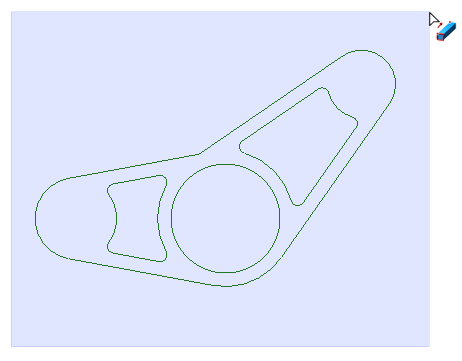
Selecting all objects for solid extrusion
The result, when viewed from Top view is shown below. When viewed from Top view, the excluded islands can be seem more clearly. More….Views are changed by right clicking in the editor and selecting View, then the view option. A view can be rotated by selecting View> Rotate View from the menu.
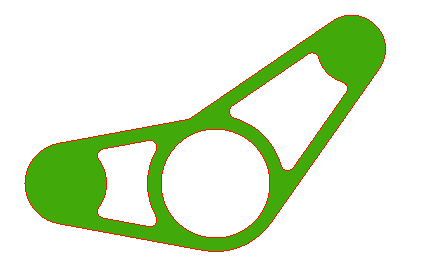
Objects to be extruded shown in solid, islands of exclusion shown as hollow.
Isometric View
Right click in the editor and select View > Isometric. The result is shown below.
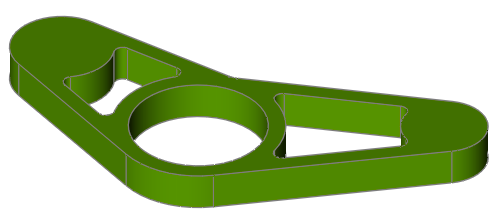
Closed profile extruded to 22, excluding islands | Image rotated slightly for illustrative clarity | Color changed to Green
View WorkPlane
By selecting WorkPlane | View Workplane, the new part can be seen extruded equidistantly above and below the WorkPlane, shown below. The image below is viewed in Transparency Mode. Right click over the part and select Transparency.