Manipulating & Modifying Profiles
In this Task
- The inner part of the component will be moved outside the sketch.
- This portion will be reassembled later.
- The inner portion of the sketch will be trimmed to create a profile.
- A new circle will be drawn in the center of the sketch.
Associated Tasks
- Transform, Translate, Trim, Circle.
Before you Start
- Snaps are activated.
Take Note
- A pick window can be used to select multiple objects. A left-to right window selects only objects fully contained within the window; a right-to-left window selects objects within and intersected by the pick window.
Translate

Modify | Translate
Objects which are transformed or translated are manipulated or modified.
When an object or group of objects is transformed or translated, it is moved to another position in the editor.
A copy of a an object or group of objects can be obtained by hold down the ALT keyboard key during the move process.
The inner part of the component will be copied outside the sketch. This portion will be reassembled later.
Using the SHIFT key to select multiple objects or the pick window, select the objects which form the inner components and copy them to a position away from the sketch, shown below. Make sure the CTRL key is held down before selecting the move point.
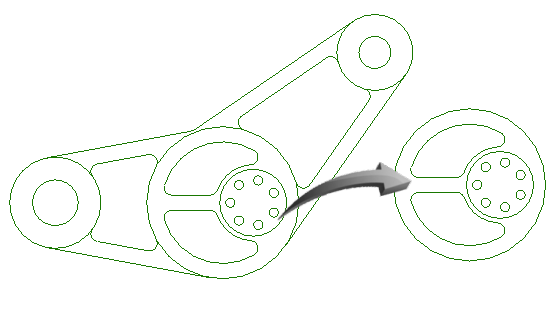
Inner objects copied
When these objects have been copied, delete the inner objects so that the region is the same as the illustration below.
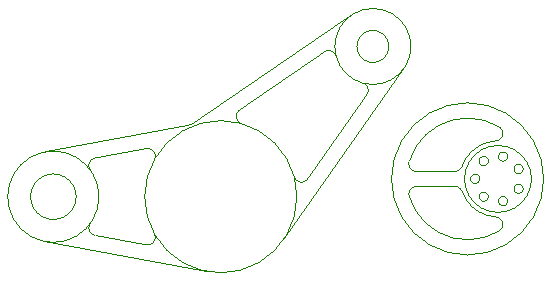
Removing sketch objects from the inner region
Trim

Modify | Trim | Trim
The Trim tool trims lines, arcs of circles to a defined boundary edge.
The keyboard SHIFT key is used to select multiple objects and can be used to add or remove objects to the selection.
Select the Trim tool and use a right-to-left pick window shown below to select all the sketch objects.
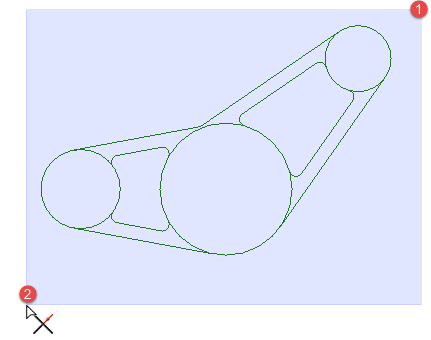
Using a right-to-left pick window to select Trim boundary edges
Select the segments to trim, starting with the segment shown below.

Select first segment to trim
Trim the segments so that the result is the same as the illustration below, removing the inner circles as shown below.

Trimmed inner segments
Center Point Circle

Draw | Circle | Center Point Circle
This circle tool draws a single circle by defining the center point and diameter.
The diameter can either be defined by selecting a point in the graphics editor, or by inputting a value into the Diameter field.
The diameter of the circle can be changed after insertion by changing the value in the Diameter edit field.
In order to create a hole in which to reinsert the parts which were moved earlier, a circle should be inserted onto the center point below, with a diameter of 80. This will create a ‘hollow’ when the part is extruded in the next task.

The result is shown below, with dimension inserted to visual clarity only.

