Polar Duplicate
In this Task
- The items shown below will be arrayed about the center point of the main circle. Four equi-distantly spaced copies will be made.
Associated Tasks
- Selecting objects using a pick window.
- Trim.
Before you Start
- Make sure snap modes are enabled. Polar duplicates rely on a common center point.
Take Note
- When selecting objects using a left-to-right direction, only objects fully contained within this window are selected.
Polar Duplicate

Modify | Transform | Polar Duplicate
This duplication tool creates copies of an object or objects in a circular pattern around a common center point.
The items shown below will be arrayed about the center point of the main circle. Four equi-distantly spaced copies will be made.
Select the Polar Array tool from the toolbar or use Modify > Transform > Polar Duplicate.
Using a left-to-right pick window, select the items shown below. Make sure the arcs on the top circles are selected.

The Polar Duplicate dialog box will be displayed, shown below. Make sure the Center X field is highlighted, shown below, then input 4 in the Numbers field. Make sure the Total Angle option is selected.
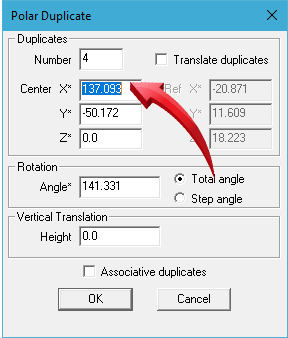
Center X is highlighted. This point will be defined as the center of the main circle.
Click onto the center point of the main circle, shown below.
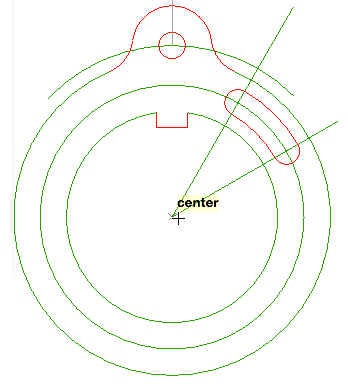
Defining the center of the polar duplicates
Move back into the Polar Duplicate dialog box and click OK. The result is shown below.

Objects duplicated using Polar Duplicate
The Trim tool is used to remove the segments indicated below. When trimming multiple objects, it is useful to select all associated objects using a pick window.
In the example below left, a window was used to select all the objects. The segments can be trimmed in any order so the result is similar to the illustration below right.

